

Aircall
Automatically import and analyze Aircall calls in Salescaling to centralize your business interactions.
Aircall
Call Integration with Aircall
Salescaling allows you to automatically import your calls made in Aircall, facilitating the management and analysis of your business interactions. To take advantage of this integration, follow the steps and consider the requirements described below.
How to obtain API credentials in Aircall?
Before connecting Aircall with Salescaling, you need to obtain your API ID and API Token from the Aircall administration panel:
- Log in to your Aircall Dashboard account.
- Go to Integrations & API in the left sidebar menu.
- Click on the API Keys tab.
- Click on Generate an API key to create new credentials.
- Assign a descriptive name to the key (e.g., "Salescaling") and confirm creation.
- Copy the displayed API ID and API Token. Important: The API Token is only shown once, so make sure to save it in a secure place.
How to connect your Aircall account?
- Access your Salescaling account.
- Go to the Integrations section in Settings.
- Locate the Aircall integration and click Connect. A window will open where you must enter your credentials:
-
API ID: The identifier of your Aircall API key.
-
API Token: The secret token of your API key.
-
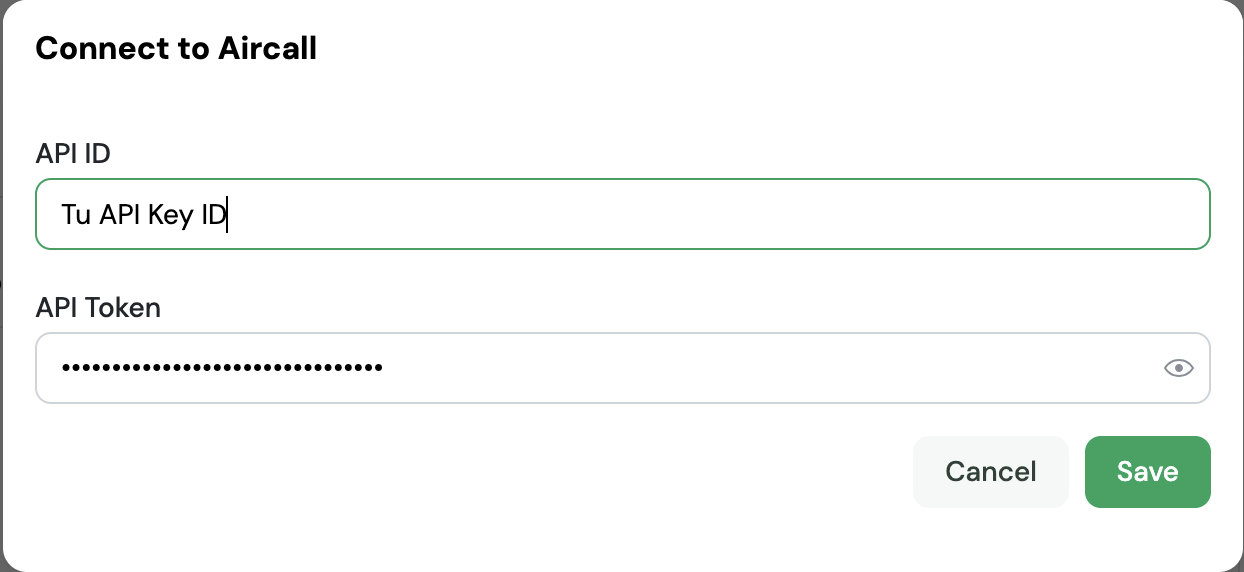
- Click Save to complete the connection.
Which calls are imported from Aircall?
After connecting your account, Salescaling will automatically import Aircall calls that meet all the following requirements:
- Call date: Only calls made in the two weeks prior to the import time will be imported.
- Matching user: The call must have been made by an Aircall user whose email matches that of a paid user in Salescaling.
- Recording available: The call must have the recording stored in Aircall. If the call has no recording, it will not be imported.
- File size: Recordings cannot exceed 200 MB.
What information is synchronized?
For each imported call, Salescaling receives and processes the following information:
| Field | Description |
|---|---|
| Identifier | Unique call ID in Aircall |
| Direction | Whether the call is inbound or outbound |
| Status | Call status (answered, missed, voicemail, failed) |
| Start date and time | Time when the call started |
| End date and time | Time when the call ended |
| Duration | Total call duration in seconds |
| Recording | Audio file of the call |
| User | Agent information (name and email) |
| Contact | External contact information (name and phone) |
| Internal number | Aircall number used |
| External number | External contact's number |
Important notes
- Synchronization frequency: Once connected, the platform will check for new calls in Aircall every 15 minutes. Therefore, a newly finished call may take a few minutes to appear in Salescaling.
- User matching: Make sure that your team's users in Aircall use the same email address as in Salescaling for their calls to be recognized and imported correctly.
- Mandatory recordings: For a call to be imported, recording must be enabled in Aircall. Configure recording policies in your Aircall account according to applicable regulations.
- Initial limit: In the first import, a maximum of 200 calls will be imported to avoid overload. Subsequent synchronizations will import all new calls since the last import.
Troubleshooting
My calls are not being imported
Check the following:
- The user's email in Aircall exactly matches the email in Salescaling.
- Calls have recording enabled in Aircall.
- API credentials are correct and have not expired.
- The user who generated the API keys has administrator permissions.
Where can I find the API ID and API Token?
In the Aircall Dashboard, go to Integrations & API → API Keys → Generate an API key. Both values will be displayed. Remember that the API Token is only shown once at the time of creation.
Can I regenerate API credentials?
Yes, you can generate new API keys at any time from the Aircall Dashboard. If you do, remember to update the credentials in Salescaling so that the integration continues to function.
If you have questions or need help, contact Salescaling support.