

Recording Analysis
Recording Analysis
1. Explorer
The Recording Explorer is the main command center for managing all recorded conversations. The interface is the same for Meetings and Calls, allowing you to find and manage any activity quickly and consistently.
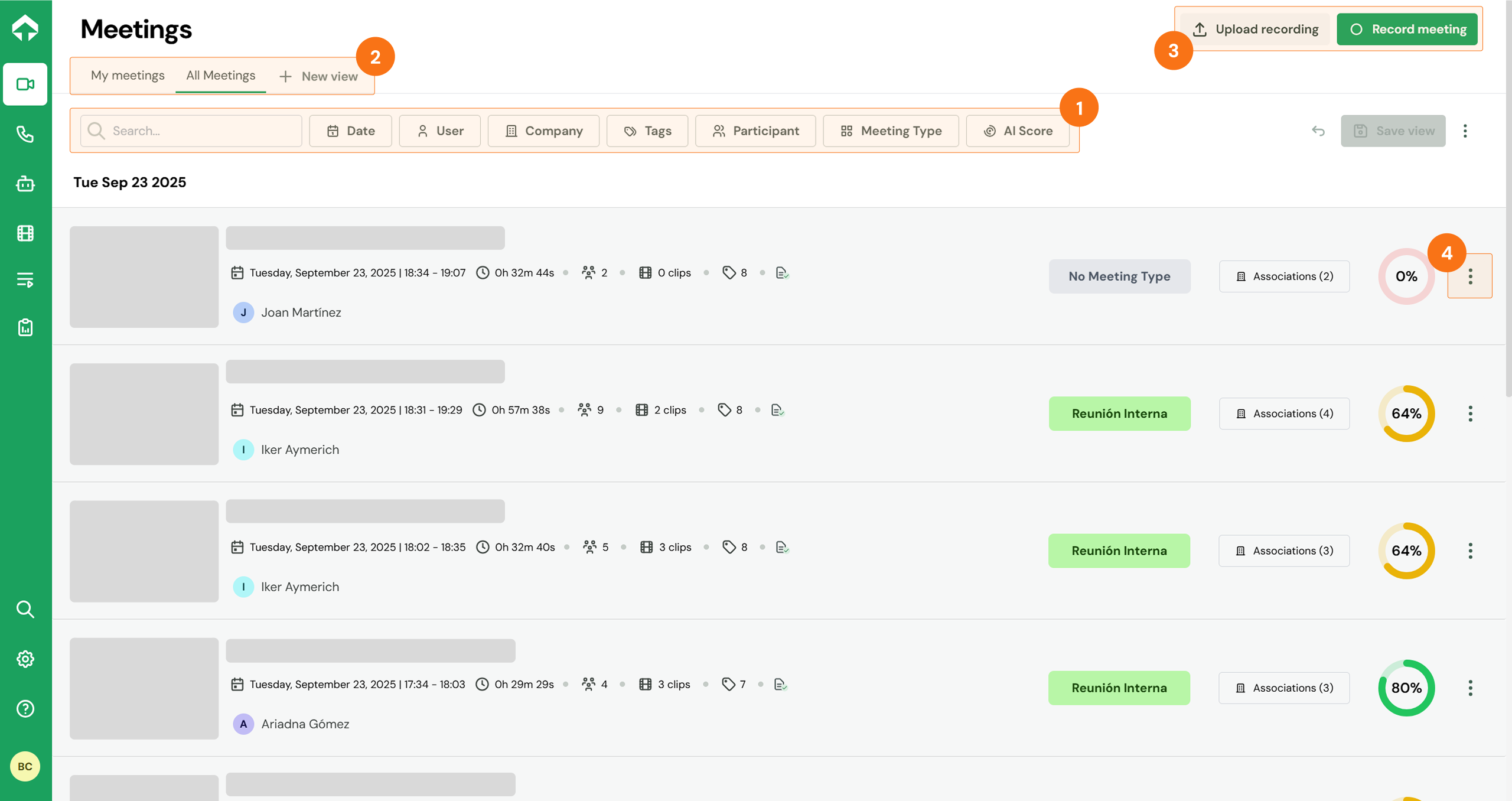
Unified search and filters (1):
The top bar allows you to precisely locate any recording using criteria such as Date, User, Company, Tags, and the AI Score. The only difference is the type filter: Meeting Type or Call Type.
Saved views (2):
It is possible to save frequently used filter combinations as a "View" for one-click access.
Start or upload recordings (3):
From the top right corner, new activities can be added, either by recording a meeting on the spot (Record Meeting) or by uploading an existing video or audio file (Upload recording / call).
Quick actions (4):
The three-dot menu (...) at the end of each row allows you to:
- Copy the AI summary.
- Share the recording.
- Delete the recording.
2. Detailed recording review
By clicking on any recording from the Explorer, you access the Detail View, Salescaling's deep analysis center. The interface is the same for Meetings and Calls (except that the video player is not shown in Calls).
The player and interactive transcript
- The right panel contains the player (1) and the full transcript (2), synchronized with the audio/video.
- This panel has three views:
-
Transcription (2): Full text of the recording.
-
Speakers (3): Summary of each person's participation.
-
Questions (4): List of all detected questions.
-
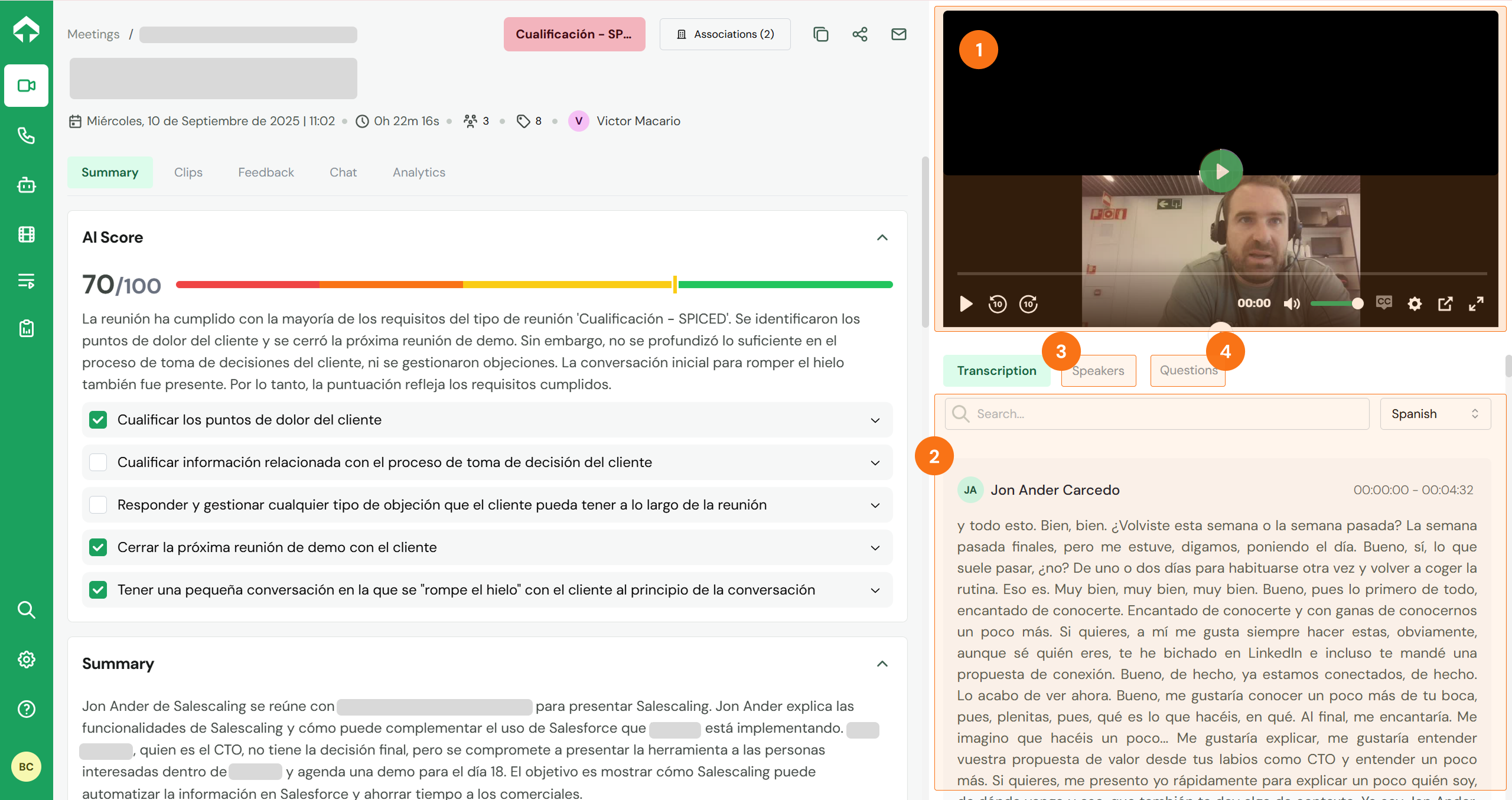
Analysis tabs (left panel)
- Summary: Presents an interactive breakdown of the AI Score, where you can click on each criterion to see the evidence in the video.
- Clips: Key moments, generated by AI or created manually.
- Chat with AI: Ask the AI about the meeting content.
- Feedback: Structured comments for each participant.
- Analytics: Graphs on conversation dynamics (talk time, etc.).
.png)